
Download BGInfo for Windows
Display computer name, IP address, OS version, and other system details right on your desktop background. Built for IT admins and power users.
What Is BGInfo?
A Microsoft Sysinternals utility that puts system details directly on your Windows desktop wallpaper.
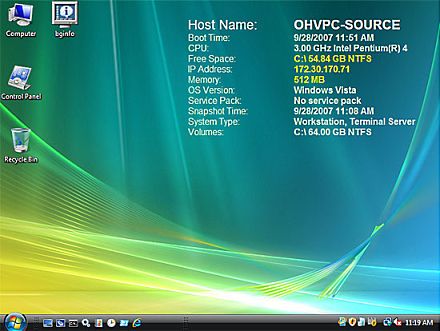
BGInfo is a small, portable tool from the Sysinternals suite that writes system information straight onto your Windows desktop background. Once you run it, your wallpaper shows details like the computer name, IP address, OS version, disk space, and CPU specs. The info stays there as a rendered bitmap, so BGInfo itself does not need to keep running.
IT administrators use BGInfo heavily across server rooms and help desks. When you are managing dozens of machines through KVM switches or RDP sessions, a quick glance at the desktop tells you exactly which system you are on. No need to open a command prompt or dig through System Properties.
The tool is fully configurable. You pick which fields to display, set font styles and colors, choose the position on screen, and save your settings to a .bgi file. You can also pull in custom data through WMI queries, registry values, environment variables, or VBScript. Organizations often deploy BGInfo through Group Policy or logon scripts so every workstation shows a consistent information layout.
Mark Russinovich built BGInfo as part of the Sysinternals toolkit, which Microsoft acquired in 2006. The tool is free for both personal and business use and gets periodic updates. At just 2.2 MB, it runs on Windows 10, Windows 11, and Windows Server 2016 or later without any installation.
Desktop wallpaper overlay
Renders system info as a bitmap on your background. No persistent process needed — it writes the image and exits.
Fully customizable fields
Choose from built-in fields or create your own with WMI queries, registry keys, environment variables, and scripts.
Enterprise-ready deployment
Push settings across your network using Group Policy, logon scripts, or the command-line /timer and /silent flags.
Database logging
Export system snapshots to Excel, Access, text files, or SQL databases. Useful for asset tracking and compliance audits.
Ready to try it? Download BGInfo and set it up in under a minute.
Key Features
BGInfo turns your idle desktop wallpaper into a live system dashboard. Here is what it brings to the table for IT administrators and power users.
Live Desktop Information Overlay
BGInfo renders system details directly onto your Windows desktop background as a persistent bitmap. Computer name, IP address, MAC address, OS version, CPU model, free disk space, and RAM stats are visible at a glance without opening any application. Especially useful in server rooms and RDP sessions where you need to identify machines instantly.
Fully Customizable Fields
Add, remove, and reorder every piece of information that appears on your desktop. Pick from dozens of built-in fields or define your own. You control exactly what shows up and where it sits on the wallpaper.
Custom WMI & Script Fields
Pull data from WMI queries, Windows registry keys, environment variables, or external VBScript/PowerShell scripts. If Windows can report it, BGInfo can display it on your desktop. This makes it extremely flexible for niche enterprise data.
Font & Background Styling
Choose your own font face, size, color, and positioning for the overlay text. Set a solid color, gradient, or keep your existing wallpaper as the backdrop. The text placement and alignment can be adjusted to any corner or region of the screen.
Database Logging & History Tracking
Export system information snapshots to external databases for audit trails and compliance. BGInfo supports writing to Excel spreadsheets (.XLS), Access databases (.MDB), plain text files (.TXT), and direct SQL Server connections. IT teams use this to build historical records of hardware and software configurations across entire fleets of workstations.
Configuration Profiles (.bgi)
Save and load complete configurations as .bgi files. Create a single profile, distribute it across hundreds of machines, and every desktop shows the same layout. Handy for standardized enterprise deployments where consistency matters.
Command-Line Automation
Run BGInfo silently using flags like /timer:0 for instant apply, /silent for no UI, /popup for window mode, and /taskbar for system tray. Perfect for logon scripts and scheduled tasks that apply settings without user interaction.
Group Policy & Logon Script Deployment
Deploy BGInfo across an entire Active Directory domain through Group Policy objects or startup/logon scripts. Drop the executable and a .bgi config file on a network share, point a GPO at it, and every machine in the OU picks it up on next login.
Multi-Monitor & Terminal Services
BGInfo handles multi-monitor setups and Terminal Services environments properly. In RDP/RDS scenarios it generates per-user bitmaps so each session shows the correct user and session data rather than a shared desktop image.
Portable & Zero-Install
BGInfo is a standalone executable at just 2.2 MB. No installer, no dependencies, no registry entries. Unzip, run, done. Drop it on a USB drive or network share and use it anywhere without admin privileges for the basic functionality.
All features ship free under the Sysinternals license — download BGInfo and start customizing your desktop.
System Requirements
BGInfo is a lightweight, portable tool that runs on most Windows machines without any installation. Here is what you need.
| Component | Minimum | Recommended |
|---|---|---|
| Operating System | Windows 10 (any edition) | Windows 10 22H2 or Windows 11 |
| Server OS | Windows Server 2016 | Windows Server 2019 or 2022 |
| Processor | 1 GHz or faster (x86/x64) | Multi-core processor, any speed |
| RAM | 512 MB available | 1 GB or more |
| Disk Space | 5 MB (portable, no install) | 10 MB (with saved configs and bitmaps) |
| Display | 800 x 600 resolution | 1920 x 1080 or higher |
| Internet | Not required | Optional (for Sysinternals Live) |
| Permissions | Standard user account | Admin rights for logon screen wallpaper |
Portable application — BGInfo runs directly from the ZIP file. No installer, no registry changes, no background process. It writes a single bitmap to your desktop and exits.
Download BGInfo
Get the latest version of BGInfo directly from Microsoft Sysinternals. No installation needed — just extract and run.
BGInfo for Windows
Version 4.33 · Released February 13, 2025 · 2.2 MB ZIP archive
Download BGInfoWindows 10 and later · ZIP formatSysinternals Live
Run BGInfo directly from the web without downloading. Always the latest version.
Run from webSysinternals Suite
Download the full Sysinternals Suite, which includes BGInfo plus 70+ other tools.
Get full suiteMicrosoft Learn
Visit the official Microsoft Learn page for documentation, command-line reference, and changelog.
View docs/timer:0 flag with a saved .bgi configuration file in your startup folder or Group Policy logon script.
Need help setting it up? Check our Getting Started guide for step-by-step instructions.
Screenshots
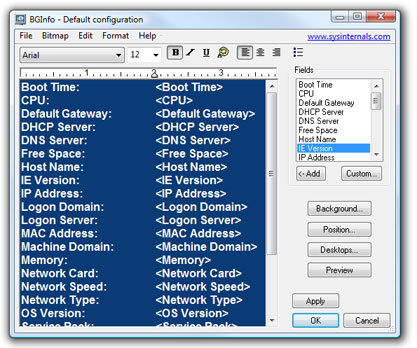
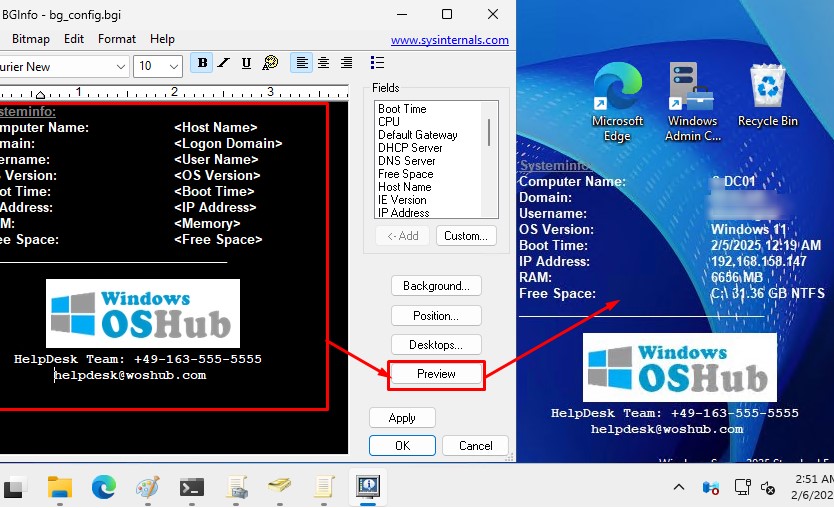
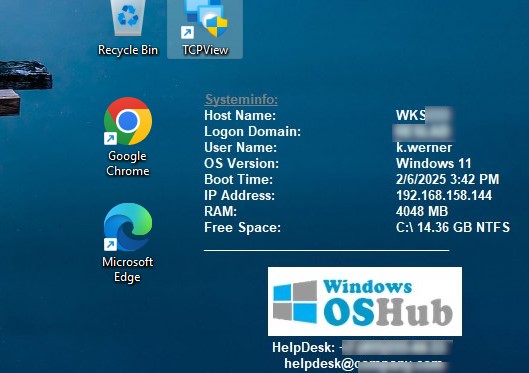
See BGInfo in action — from the configuration dialog to the system information overlay on your desktop.
Click any image to view full size
Getting Started with BGInfo
A hands-on walkthrough for downloading, configuring, and deploying BGInfo on your Windows machines. From first launch to enterprise rollout.
Downloading BGInfo
Head to our download section above to grab BGInfo v4.33. The download is a small ZIP archive (about 2.2 MB) containing the BGInfo executable. Most connections will pull it down in under a second.
Inside the ZIP you will find two files: Bginfo.exe (32-bit) and Bginfo64.exe (64-bit). On any modern Windows 10 or 11 machine, pick Bginfo64.exe. The 32-bit version is there for legacy systems or older Windows Server installs still running on 32-bit hardware.
BGInfo is a portable application. There is no installer, no MSI package, no setup wizard. You extract the executable and run it directly. This makes it simple to distribute across machines, drop into a network share, or bundle with a Group Policy login script. No admin rights are needed just to run it on a single workstation, though deploying it domain-wide typically requires Group Policy access.
C:\Tools\BGInfo\ and extract both executables there. This keeps things tidy and gives you a stable path for scheduled tasks or login scripts later.
First Launch and License Agreement
Double-click Bginfo64.exe (or Bginfo.exe for 32-bit). On first run, you will see the Sysinternals End User License Agreement. Click Agree to continue. This only appears once per user profile.
After accepting, the main BGInfo window opens with a 10-second countdown timer in the bottom-left corner. If you do nothing, BGInfo applies its default configuration and stamps the desktop. To stop the timer and work at your own pace, click anywhere inside the configuration window or click the timer text itself.
The main dialog is split into two areas. On the left, you see a text area showing which fields will appear on your desktop. On the right, a Fields list box shows all the system properties BGInfo can pull: Host Name, IP Address, OS Version, CPU, Memory, Boot Time, and many more. Each field has a checkbox.
Understanding the Interface Layout
Along the bottom of the dialog, five buttons give you control over the output:
- Fields… — Manage built-in and custom data fields
- Background… — Choose solid color, gradient, or use the current wallpaper as the base
- Position… — Set where the info text block appears on the desktop (top-left, bottom-right, center, etc.)
- Desktops… — Configure behavior for multiple monitors and Terminal Services sessions
- Preview — See how the desktop will look before applying
For a quick first test, leave the default fields, click Preview to check the layout, then click Apply. Your desktop background now shows host name, IP address, OS version, and other system info overlaid on the wallpaper.
Initial Setup and Configuration
The default field set is a reasonable starting point, but most admins trim it down. Click inside the text area and delete any lines you do not need. To add a field, select it from the Fields list on the right, then click Add. The field tag (for example, <IP Address>) gets inserted at the cursor position.
Recommended Fields for Workstations
For a typical IT support scenario, keep these fields and remove the rest:
- Host Name — the machine’s network name
- User Name — currently logged-in user (domain\username format)
- IP Address — all active adapters
- OS Version — full build string (e.g., Windows 11 Pro 23H2)
- CPU — processor model
- Memory — installed RAM in MB
- Free Space — available disk space on C:
Formatting and Appearance
Right-click in the text area to change font, size, and style. Most admins pick a clean monospaced font like Consolas or Lucida Console at 9-10pt for readability without taking up too much screen space. Use the Background button to choose how the info overlays your wallpaper. The three options are:
- Use current wallpaper — stamps the text onto whatever wallpaper is currently set
- Solid color — replaces the wallpaper with a flat color
- Copy existing settings — duplicates the current desktop, then overlays the info
For servers, a solid dark background with white text works well. For workstations where users keep their own wallpaper, use Copy existing settings so the info text simply appears over their current desktop image.
Saving Your Configuration
Go to File > Save As and save as a .bgi file (for example, workstation.bgi). This file stores every setting: which fields are displayed, fonts, colors, text position, background mode, and any custom fields. You can load it later on other machines or pass it to a login script.
server.bgi might include disk space and uptime, while a workstation.bgi focuses on host name, user, and IP.
Adding Custom Fields with WMI Queries
Built-in fields cover common properties, but the real power of BGInfo comes from custom fields. You can pull nearly any system property through WMI queries, registry values, environment variables, or external scripts.
Creating a Custom WMI Field
Here is a concrete example. Say you want to display the machine’s serial number on the desktop:
- In the main BGInfo window, click Custom… under the Fields list
- Click New in the Custom Fields dialog
- Set the Identifier to something descriptive:
Serial Number - Select the WMI Query radio button
- In the Namespace field, leave the default:
root\cimv2 - Click Browse… to open the WMI class browser. Navigate to Win32_BIOS and select the SerialNumber property. Or type the query directly:
SELECT SerialNumber FROM Win32_BIOS - Click OK to save. The new field
Serial Numbernow appears in the Fields list - Select it and click Add to insert it into the text area
Click Preview to confirm the serial number shows correctly, then Apply.
Common Custom WMI Queries
| Field | WMI Query |
|---|---|
| Active IP (enabled adapters only) | SELECT IPAddress FROM Win32_NetworkAdapterConfiguration WHERE IPEnabled=True |
| Default Gateway | SELECT DefaultIPGateway FROM Win32_NetworkAdapterConfiguration WHERE IPEnabled=True |
| System Model | SELECT Model FROM Win32_ComputerSystem |
| Serial Number | SELECT SerialNumber FROM Win32_BIOS |
| Last Boot Time | SELECT LastBootUpTime FROM Win32_OperatingSystem |
Automating with Command-Line Flags
BGInfo supports several command-line switches that make automation straightforward. The most useful ones:
- /timer:0 — Applies settings immediately with no countdown dialog
- /silent — No window appears at all; the desktop just updates
- /nolicprompt — Skips the license agreement on first run (useful for scripted deployments)
- /popup — Shows the info in a floating window instead of stamping the desktop
- /taskbar — Minimizes to the system tray for persistent access
To run BGInfo at every login, place a shortcut in the Startup folder (shell:startup) with the command above, or create a Scheduled Task triggered at user logon.
Tips, Tricks, and Best Practices
Deploy via Group Policy. For enterprise rollouts, copy Bginfo64.exe and your .bgi config file to a network share (for example, \\dc01\NETLOGON\BGInfo\). Create a Group Policy logon script with:
This applies the configuration on every user login across all domain-joined machines.
Avoid multiple wallpaper writes. Each time BGInfo applies, it generates a new BMP file in the user’s temp folder. On Terminal Server environments with many users, this can consume disk space. Set BGInfo to overwrite the same file by pointing the output path to a fixed location under Bitmap > Location.
Use the database logging feature. BGInfo can export collected system data to an Excel file (.XLS), Access database (.MDB), text file, or SQL Server database. Go to Edit > Database to configure this. It is a quick way to inventory machines across a small network without installing an asset management tool.
Combine with Sysinternals Live. You can run BGInfo directly from the web without downloading anything: open a Run dialog and type \\live.sysinternals.com\tools\Bginfo64.exe. Windows maps the Sysinternals Live share automatically. Handy for one-off checks on machines where you do not want to leave files behind.
Ready to get started? Download BGInfo and have system info on your desktop in under a minute.
Frequently Asked Questions
Answers to common questions about downloading, configuring, and deploying BGInfo on Windows desktops and servers.
Is BGInfo safe to download and use?
Yes, BGInfo is completely safe. It is an official Microsoft Sysinternals tool developed by Mark Russinovich, who also serves as Microsoft’s CTO of Azure. The utility has been part of the Sysinternals suite since 2001 and is downloaded by hundreds of thousands of IT professionals every year.
BGInfo version 4.33 (released February 2025) is digitally signed by Microsoft. The ZIP download from the official Sysinternals page weighs just 2.2 MB and contains only the portable executable — no installer, no bundled third-party software, and no background services. When you run BGInfo, it generates a single bitmap image, writes it to your desktop wallpaper, and then exits. It does not run as a persistent process, does not phone home, and does not collect telemetry.
- Hosted on Microsoft’s own domain:
download.sysinternals.com - Digitally signed with Microsoft’s code-signing certificate
- No background services, no registry bloat, no startup entries unless you add them yourself
- Scanned clean on VirusTotal — 0 detections from 70+ antivirus engines
Pro tip: Avoid downloading BGInfo from third-party download sites like Softonic or FileHippo. Some of these bundle extra software or modified installers. Stick to the official Microsoft source or grab it from our download section.
For a full breakdown of what BGInfo does on your system, see our features overview.
Where is the official safe download for BGInfo?
The official download for BGInfo is hosted at learn.microsoft.com/en-us/sysinternals/downloads/bginfo — that is the only source maintained directly by Microsoft. The download link points to download.sysinternals.com/files/BGInfo.zip, which serves the same 2.2 MB ZIP file every time.
Microsoft also offers Sysinternals Live, a web service that lets you run BGInfo directly over the network without downloading it first. The live path is \\live.sysinternals.com\tools\Bginfo.exe, which you can type into the Windows Run dialog or a mapped network drive. This is especially useful in enterprise environments where you want to ensure every machine runs the latest version without manually distributing updates.
- Go to the official Sysinternals page for BGInfo on Microsoft Learn
- Click the “Download BgInfo” link — this downloads
BGInfo.zip - Extract the ZIP to a folder of your choice (e.g.,
C:\Tools\BGInfo) - Run
Bginfo64.exefor 64-bit Windows orBginfo.exefor 32-bit
Pro tip: For enterprise deployment, place the BGInfo executable and your saved .bgi configuration file on a network share like \\server\NETLOGON\BGInfo\ so Group Policy logon scripts can reference a single, centrally managed copy.
You can also grab BGInfo directly from our download page, which links to the official Microsoft source.
Is BGInfo free from malware and spyware?
Yes, BGInfo contains zero malware, spyware, or adware. Microsoft publishes the Sysinternals tools under a free license for both personal and commercial use. There is no monetization through bundled software, ads, or data collection.
The BGInfo executable (Bginfo64.exe, about 2.1 MB) is code-signed by “Microsoft Corporation” with a valid authenticode signature. You can verify this yourself by right-clicking the file, going to Properties, and checking the Digital Signatures tab. The SHA-256 hash of the official download matches what Microsoft publishes. On VirusTotal, the file consistently shows 0 detections across all major antivirus engines including Windows Defender, Kaspersky, Bitdefender, and Norton.
- No network connections — BGInfo works entirely offline
- No data collection or telemetry of any kind
- No installer — it is a portable EXE that you can delete at any time
- Open for inspection with tools like Process Monitor (another Sysinternals tool)
Pro tip: If Windows SmartScreen shows a warning, it is because the file was downloaded from the internet. Right-click the ZIP, select Properties, and check “Unblock” before extracting. This clears the zone identifier and prevents the warning.
See our Getting Started guide for detailed steps on downloading and extracting BGInfo safely.
Does BGInfo work on Windows 11?
Yes, BGInfo 4.33 fully supports Windows 11 including the 23H2 and 24H2 updates. Earlier versions (4.28 and below) had a known issue where Windows 11 was incorrectly reported as “Windows 10 Build 22000” due to how Microsoft changed the OS version numbering. Version 4.33 resolves this and correctly identifies Windows 11 builds.
BGInfo works with all Windows 11 editions: Home, Pro, Enterprise, and Education. It supports both x64 and ARM64 processors, so it runs on Surface Pro X and other ARM-based Windows devices. On multi-monitor setups with Windows 11, BGInfo renders the system information overlay on the primary display by default, but you can use the Desktops button in the configuration dialog to apply it across all monitors.
- Windows 11 21H2 through 24H2 — all supported with version 4.33
- ARM64 devices — use Bginfo64.exe, which runs under emulation on ARM
- High-DPI displays (4K, ultrawide) — BGInfo scales text properly when DPI-aware mode is active
- Windows 11 dark mode — BGInfo generates a custom bitmap, so it works regardless of your theme
Pro tip: After a major Windows 11 feature update, BGInfo may temporarily show stale boot time data. This happens because of Fast Startup. Disable Fast Startup via Control Panel > Power Options > “Choose what the power buttons do” > uncheck “Turn on fast startup” to get accurate boot time readings.
Check the full system requirements for minimum hardware specs.
What are the minimum system requirements for BGInfo?
BGInfo requires Windows 10 or later for client machines, and Windows Server 2016 or later for server deployments. Hardware requirements are minimal since BGInfo is a lightweight portable application that runs briefly, generates a bitmap, and then exits.
The executable itself is about 2.1 MB, and it typically uses under 15 MB of RAM during the few seconds it runs. BGInfo generates a single BMP image file that replaces your wallpaper — this image is usually between 2-8 MB depending on your screen resolution and the number of fields displayed. There is no persistent CPU usage since BGInfo does not run as a background process.
- Operating System: Windows 10, Windows 11, Windows Server 2016, 2019, 2022, or Server 2025
- Disk Space: Under 5 MB for the executable; roughly 10 MB additional for the generated wallpaper bitmap
- RAM: Under 15 MB during execution — released immediately after
- CPU: Any x64 or x86 processor. ARM64 supported via emulation
- Display: Any resolution. Multi-monitor supported
Pro tip: On Terminal Services or Remote Desktop Session Host servers, BGInfo generates per-user bitmaps stored in each user’s profile. On a server with many concurrent RDP users, this can add up — plan for roughly 5-8 MB per user session in disk space.
View the detailed system requirements table for minimum and recommended specs.
Does BGInfo work on macOS or Linux?
No, BGInfo is a Windows-only utility. It relies on Windows-specific APIs for wallpaper rendering, WMI queries, and registry access, so there is no macOS or Linux version and Microsoft has not announced plans to port it.
On Linux, the closest equivalent is Conky, a free and open-source system monitor that renders system stats directly on the desktop. Conky is highly configurable through Lua scripts and supports hundreds of data sources (CPU, RAM, disk, network, GPU temperature, and more). On macOS, you can use GeekTool or Ubersicht to display system information on the desktop background with custom scripts.
- Linux alternative: Conky — open source, real-time updates, Lua scripting, supports all major distros
- macOS alternative: GeekTool (free) or Ubersicht (free) — both use shell scripts to render info on desktop
- Cross-platform: Rainmeter (Windows-only but popular) for more visual system monitors
Pro tip: If you manage a mixed-OS environment, consider writing a PowerShell script (for Windows servers with BGInfo) and a Conky config (for Linux servers) that display the same fields — hostname, IP, OS version, uptime — for a consistent experience across platforms.
For Windows-specific setup, see our Getting Started guide.
Is BGInfo completely free to download and use?
Yes, BGInfo is 100% free with no premium tier, no subscription, and no feature gating. Microsoft distributes it under the Sysinternals Software License Terms, which grant free use for both personal and commercial purposes. Fortune 500 companies, government agencies, and small businesses all use BGInfo at no cost.
There is no “Pro” or “Enterprise” edition — every user gets access to every feature. This includes custom WMI queries, database logging (SQL Server, Access, Excel, CSV), multi-monitor support, Terminal Services bitmaps, custom background images, command-line automation, and Group Policy deployment. All of these are included in the same free download.
- Free for personal use — home labs, personal PCs, learning environments
- Free for commercial use — enterprise servers, corporate desktops, MSP environments
- No registration, no license key, no activation required
- No ads, no upsells, no telemetry
Pro tip: The first time you launch BGInfo, it displays a license agreement (EULA). For automated deployments, add the /accepteula flag to your script so users never see this dialog. You can also pre-accept it via registry: reg add HKCU\Software\Sysinternals\BGInfo /v EulaAccepted /t REG_DWORD /d 1 /f.
Ready to get started? Head to our download section to grab BGInfo.
Can I use BGInfo in a corporate or enterprise environment?
Yes, BGInfo is explicitly licensed for enterprise and commercial use at no cost. The Sysinternals license allows deployment to unlimited machines across your organization without purchasing additional licenses or contacting Microsoft for permission.
Enterprise deployment is one of BGInfo’s core strengths. The most common method is Group Policy logon scripts: you place Bginfo64.exe and a saved configuration file (.bgi) on a network share like \\dc01\NETLOGON\BGInfo\, create a batch script that runs it silently, and link that script to a Group Policy Object assigned to your target OU. BGInfo runs at each logon, updates the wallpaper with current system data, and exits in under 3 seconds.
- Save your BGInfo configuration as a
.bgifile using File > Save As - Copy
Bginfo64.exeand the.bgifile to\\server\NETLOGON\BGInfo\ - Create a batch script:
Bginfo64.exe \\server\NETLOGON\BGInfo\config.bgi /timer:0 /silent /nolicprompt /accepteula - In Group Policy, go to User Configuration > Policies > Windows Settings > Scripts (Logon/Logoff) and add the batch file
- Run
gpupdate /forceon a test machine and verify the wallpaper updates at next logon
Pro tip: Enable loopback processing (Replace mode) in the GPO if you need BGInfo to apply based on the computer’s OU rather than the user’s OU. This is common for server farms and kiosk machines where you want consistent information displayed regardless of who logs in.
Learn more about deployment options in our Getting Started guide.
How do I download and set up BGInfo step by step?
Setting up BGInfo takes about 2 minutes. There is no installer — BGInfo is a portable application that you extract and run directly.
The download is a single ZIP file (2.2 MB) containing two executables: Bginfo.exe (32-bit) and Bginfo64.exe (64-bit). On any modern 64-bit Windows 10 or Windows 11 system, use Bginfo64.exe. The 32-bit version exists for legacy systems running 32-bit Windows.
- Download the ZIP from our download section or the official Microsoft Sysinternals page
- Right-click the downloaded ZIP file, select Properties, and check “Unblock” if the option appears — then click OK
- Extract the ZIP to a permanent location like
C:\Tools\BGInfo\ - Double-click
Bginfo64.exe— accept the EULA on first run - In the configuration dialog, check the fields you want displayed (Host Name, IP Address, OS Version, CPU, RAM, etc.)
- Click the Background button to set whether BGInfo uses a solid color, copies your existing wallpaper, or uses a custom image
- Click Apply to write the information to your desktop wallpaper
Pro tip: To have BGInfo run automatically at startup, create a shortcut to Bginfo64.exe with the arguments /timer:0 /silent /nolicprompt and place it in your Startup folder (shell:startup). This applies your saved configuration silently every time you log in.
For detailed configuration options, visit our Getting Started guide.
BGInfo portable vs installer — which version should I choose?
BGInfo only comes as a portable application. There is no installer version. This is by design — the entire program is a standalone EXE file that you can run from any folder, a USB drive, or a network share without installing anything on the target machine.
The portable nature of BGInfo is one of its biggest advantages for IT administrators. You can place the executable on a shared network drive, reference it from Group Policy logon scripts, and every machine in your domain will run the same version without any per-machine installation. When Microsoft releases an update (like the jump from 4.32 to 4.33), you replace the single EXE on the share and every machine picks up the new version at next logon.
- Bginfo64.exe — 2.1 MB, for 64-bit Windows 10/11 and Server 2016+ (use this one)
- Bginfo.exe — 1.9 MB, for 32-bit Windows systems (legacy only)
- No registry entries created until you run it
- No files written except the wallpaper bitmap (stored in your user profile temp folder)
- Completely removable by deleting the EXE — no uninstaller needed
Pro tip: Store BGInfo on a network share alongside your .bgi configuration file. Use the UNC path in your logon script: \\fileserver\tools\BGInfo\Bginfo64.exe \\fileserver\tools\BGInfo\standard.bgi /timer:0 /silent /accepteula. This way, updating the tool or configuration only requires changing files in one place.
Grab your copy from our download section.
How to fix BGInfo not updating the desktop wallpaper?
If BGInfo runs but the wallpaper does not change, the most common cause is a Group Policy or third-party tool overriding the desktop wallpaper setting. Windows enforces wallpaper policies from Computer Configuration > Administrative Templates > Desktop > Desktop Wallpaper, and if this policy is active, BGInfo’s bitmap gets replaced immediately.
Another frequent issue is the “Fast Startup” feature in Windows 10 and 11. Fast Startup causes BGInfo’s logon script to run before the desktop shell fully loads, which can prevent the wallpaper from being applied. Some users on Reddit and Microsoft Q&A also report that after certain Windows updates (particularly KB5026446 and similar cumulative updates), BGInfo stops refreshing fields like Boot Time because the OS version detection code changes.
- Verify no Group Policy is forcing a specific wallpaper: run
gpresult /h gpreport.htmland search for “Desktop Wallpaper” - Run BGInfo manually from the command line:
Bginfo64.exe /timer:0— check if the wallpaper updates - Disable Fast Startup: Control Panel > Power Options > “Choose what the power buttons do” > uncheck “Turn on fast startup”
- Check the BGInfo Background setting: open the tool, click Background, and make sure “Copy existing settings” is selected if you want to preserve your wallpaper
- Update to version 4.33 if you are running an older version — several wallpaper rendering bugs were fixed
Pro tip: Add /log:C:\Temp\bginfo.log to your BGInfo command line to capture error output. If the log shows WMI query failures, check that the WMI service is running: net start winmgmt.
Still having trouble? Walk through our Getting Started guide for the recommended configuration.
BGInfo stopped working after a Windows update — how to fix?
This is a known issue that has affected multiple Windows 10 and Windows 11 cumulative updates. The root cause is usually a change in how Windows reports the OS version string through WMI, which BGInfo relies on for fields like “Operating System” and “Service Pack.”
After the May 2022 Windows Update (and again with the 24H2 ADK update), many sysadmins reported on Microsoft Q&A that BGInfo would run but display stale or incorrect data. Microsoft acknowledged some of these issues and fixed OS detection in BGInfo 4.32 and later 4.33. The 24H2 ADK also introduced a separate bug where BGInfo configurations created in Windows PE would crash — Microsoft released a hotfix for this.
- Download and replace your copy with the latest version (4.33) from our download section
- Clear the cached wallpaper: delete the BMP file in
%APPDATA%\BGInfo\or%TEMP%\BGInfo.bmp - Verify WMI is healthy: open PowerShell and run
Get-CimInstance Win32_OperatingSystem— if this errors out, runwinmgmt /resetrepository - Check the registry for correct OS values:
HKLM\SOFTWARE\Microsoft\Windows NT\CurrentVersion\ProductNameshould show “Windows 11” (not “Windows 10”) - If using custom WMI queries in your .bgi file, test each query individually in PowerShell to isolate the failing one
Pro tip: After updating BGInfo, re-save your .bgi configuration file. Older .bgi files sometimes reference deprecated WMI classes or field definitions that newer versions handle differently.
See the features section for a full list of supported data fields.
Why does BGInfo show Windows 10 instead of Windows 11?
Older versions of BGInfo (4.28 and earlier) report Windows 11 as “Microsoft Windows 10” because Windows 11 shares the same NT kernel version (10.0) as Windows 10. BGInfo used the major version number to determine the OS name, and since Microsoft did not increment it for Windows 11, the tool showed the wrong name.
This was fixed in BGInfo 4.30 and further refined in 4.32 and 4.33. The updated versions check the CurrentBuildNumber registry value (22000 and higher = Windows 11) in addition to the major version. If you see “Windows 10” on a Windows 11 machine, you are running an outdated copy of BGInfo.
- Check your current version: open BGInfo and look at the title bar (e.g., “BGInfo 4.28”)
- Download version 4.33 from our download section
- Replace the old EXE with the new one in the same folder
- If deployed via Group Policy, update the EXE on your NETLOGON share and wait for the next logon cycle
Pro tip: If you cannot update immediately, you can create a custom field as a workaround. In BGInfo, click Custom > New > Registry Value, set the path to HKLM\SOFTWARE\Microsoft\Windows NT\CurrentVersion and the value to ProductName. Use this custom field instead of the built-in “Operating System” field to display the correct name.
Check the system requirements for the full list of supported Windows versions.
How do I update BGInfo to the latest version?
BGInfo does not have a built-in auto-update feature. To update, you download the latest ZIP from Microsoft and replace the existing executable. The current version is 4.33, released February 13, 2025.
Since BGInfo is a portable application with no installer, updating is straightforward: download the new ZIP, extract it, and overwrite the old Bginfo64.exe with the new one. Your saved configuration files (.bgi) are fully compatible across versions, so you do not need to reconfigure anything after updating. The new version will read your existing .bgi file and display the same fields with the same formatting.
- Check your current version by opening BGInfo and reading the title bar
- Download the latest version from our download section
- Extract the ZIP and replace the old EXE file in your BGInfo folder (e.g.,
C:\Tools\BGInfo\) - For network deployments, replace the EXE on your file share — all machines pick up the new version at next logon
- Run BGInfo once manually to verify it works:
Bginfo64.exe /timer:0
Pro tip: Subscribe to the Sysinternals RSS feed or follow the @MarkRussinovich Twitter account to get notified of new releases. Major updates are infrequent — BGInfo typically receives 1-2 updates per year.
For the full version history and changelog, check the official features page.
What is new in BGInfo version 4.33?
BGInfo 4.33 was released on February 13, 2025. This update primarily addresses Windows 11 24H2 compatibility, fixes several WMI query stability issues, and improves rendering on high-DPI displays.
The 4.32 release (November 2024) had already added support for Windows Server 2025 detection, but some users on Microsoft Q&A reported that certain custom WMI fields caused crashes on 24H2 systems when using the Windows ADK environment. Version 4.33 resolves these edge cases. The update also fixes an issue where BGInfo generated oversized bitmap files on 4K displays with scaling set to 200% or higher.
- Correct Windows 11 24H2 build detection and display
- Windows Server 2025 support
- Improved high-DPI bitmap generation — fewer oversized BMP files on 4K monitors
- Fixed crash when running certain WMI queries in Windows PE (ADK) environments
- Better multi-monitor wallpaper rendering consistency
Pro tip: After updating to 4.33, re-save your .bgi file to ensure all field definitions are using the latest internal data sources. Open BGInfo, load your existing .bgi file via File > Open, and immediately save it again with File > Save As.
Download version 4.33 from our download section.
BGInfo vs Rainmeter — which is better for displaying system info?
BGInfo and Rainmeter serve different purposes. BGInfo is a set-and-forget IT administration tool that stamps static system information onto your wallpaper and exits. Rainmeter is a desktop customization platform that displays real-time, animated system monitors using community-created “skins.”
For IT professionals managing servers and workstations, BGInfo is the better choice. It uses zero ongoing resources (no CPU, no RAM after execution), deploys silently through Group Policy, and produces a simple text overlay with hostname, IP, OS, and hardware details. Rainmeter runs continuously in the background, consuming 20-80 MB of RAM and 1-5% CPU depending on the skins loaded. On Reddit’s r/sysadmin, the consensus is clear: BGInfo for servers and managed desktops, Rainmeter for personal desktop customization.
- BGInfo: Static info overlay, zero ongoing resources, GPO deployment, enterprise-focused, free (Microsoft)
- Rainmeter: Real-time monitoring, continuous resource use, manual install per machine, personal use, free (open source)
- BGInfo: Displays info once at logon, updates only when re-run
- Rainmeter: Live updating CPU graphs, RAM meters, network traffic, clock widgets
Pro tip: If you want real-time data on a personal workstation but still need BGInfo’s text overlay for IT purposes, you can run both. BGInfo applies the wallpaper bitmap first, and Rainmeter’s skins render on top of it as floating widgets. They do not conflict with each other.
See our features section for everything BGInfo can display on your desktop.
What are the best alternatives to BGInfo?
The top alternatives to BGInfo are PowerBGInfo (PowerShell-based), Tag Every Desktop (TED), DesktopInfo, and Rainmeter. Each targets a different audience and use case.
PowerBGInfo is a PowerShell module on GitHub that generates background images the same way BGInfo does, but with more flexible customization through PowerShell scripting. TED (Tag Every Desktop) is an open-source CLI tool popular with MSPs that renders text and images above the wallpaper (not replacing it) at logon. DesktopInfo by Glenn Delahoy is a lightweight freeware tool that displays real-time system information without modifying the wallpaper at all — it draws directly on the desktop surface.
- PowerBGInfo: PowerShell module, scriptable, no EXE needed, great for DevOps teams
- TED (Tag Every Desktop): Open source, MSP-focused, renders over wallpaper without replacing it
- DesktopInfo: Real-time updates, low resource use, configurable via INI file
- Rainmeter: Highly visual, community skins, real-time monitoring, personal use
- Conky: Linux equivalent, Lua scripting, extensive customization
Pro tip: If BGInfo’s static wallpaper approach bothers you but you still need IT-grade deployment, try TED. It renders information above the wallpaper layer (below desktop icons) so users keep their chosen wallpaper. It is available on GitHub at HealthITAU/TED and deploys via RMM tools.
Compare capabilities on our features page to see what BGInfo offers.
How do I add custom fields and WMI queries to BGInfo?
BGInfo supports four types of custom fields: WMI queries, registry values, environment variables, and VBScript/file output. You add them through the Custom button in the BGInfo configuration dialog.
WMI queries are the most powerful option. They let you pull virtually any system data that Windows exposes through Windows Management Instrumentation. For example, you can display the serial number of the machine (SELECT SerialNumber FROM Win32_BIOS), the logged-in user’s domain groups, the last hotfix installed, or even the GPU model and driver version. Many sysadmins on Spiceworks and r/sysadmin share custom .bgi files with dozens of WMI fields tailored for server monitoring.
- Open BGInfo and click the Custom button (bottom right of the field list)
- Click New and choose the data source: WMI Query, Registry Value, Environment Variable, or VBScript
- For WMI: enter the namespace (
root\cimv2for most queries) and the WQL query - For Registry: enter the key path and value name (e.g.,
HKLM\SOFTWARE\Microsoft\Windows NT\CurrentVersion\DisplayVersion) - Click OK, then drag the new field from the list into the preview area where you want it displayed
Pro tip: Test your WMI queries in PowerShell first using Get-CimInstance -Query "YOUR_QUERY" before adding them to BGInfo. If the query returns no data or errors in PowerShell, it will also fail in BGInfo. For complex multi-value queries, use VBScript custom fields instead — they give you full scripting control over the output format.
For a walkthrough of setting up custom fields, check our Getting Started guide.
What command-line options does BGInfo support for automation?
BGInfo has a full set of command-line switches designed for silent, automated deployment. The most commonly used combination is Bginfo64.exe config.bgi /timer:0 /silent /nolicprompt /accepteula, which loads a saved configuration, applies it immediately, suppresses all dialogs, and exits.
These flags make BGInfo ideal for logon scripts, scheduled tasks, and SCCM/Intune deployments. The /timer:0 flag is especially important — without it, BGInfo shows a 10-second countdown dialog before applying changes, which is disruptive in automated scenarios.
/timer:0— Apply immediately, no countdown dialog/silent— Suppress all error popups (log them to file instead with/log:path)/nolicprompt— Skip the license prompt/accepteula— Accept the EULA without displaying it/all— Update wallpaper for ALL currently logged-in users (useful for Terminal Services)/popup— Show system info in a window instead of modifying the wallpaper/log:filepath— Write errors and status to a log file for troubleshooting/taskbar— Place BGInfo in the system tray for on-demand access
Pro tip: Combine /log:C:\Logs\bginfo_%COMPUTERNAME%.log with /silent in your logon script to create per-machine log files. If BGInfo fails on any machine, you can check its specific log without having to replicate the issue interactively.
See the full deployment walkthrough in our Getting Started guide.
Still have questions? Check our Getting Started guide or download BGInfo to try it yourself.